Turning on Find My Mac
On newer macOS versions (Ventura and later) System Preferences is called System Settings. The steps are almost the same:
- 01Open the Apple menu at the top left.
Choose System Settings, or System Preferences on older versions.
- 02Click your name (Apple ID), then iCloud.
Sign in with your account if you are not already.
- 03Turn on Find My Mac.
Confirm with Allow if prompted.
- 04Check Location Services.
Under Privacy & Security make sure Location Services are on and allowed for Find My.
- 05Turn on Find My network.
This lets the Mac be found even when it is offline, through nearby Apple devices.
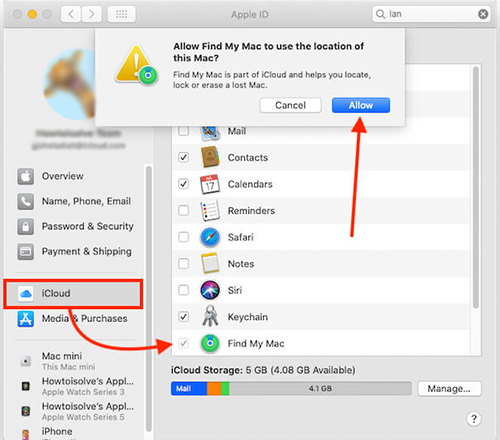
On iPhone and iPad the setting is under Settings → [your name] → Find My → Find My iPhone / iPad.
Locating from a computer
- 01Open a browser on any computer.
Chrome, Firefox, Edge or Safari.
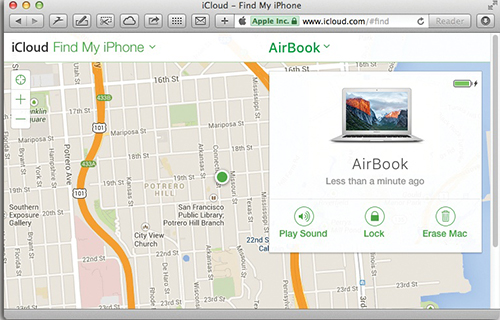
- 02Go to icloud.com/find.
- 03Sign in with your Apple ID.
If the computer is not yours, choose not to trust it.
- 04Under All Devices pick the device.
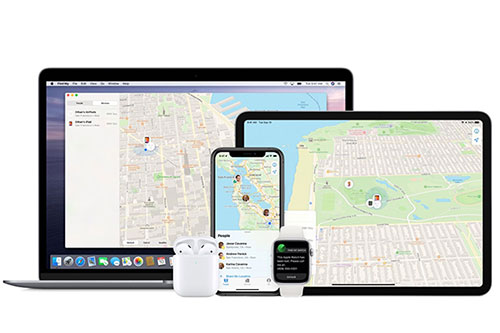
If it is online you will see its exact location on the map. If not, you will see its last known location and when it was recorded.
Locating from an iPhone
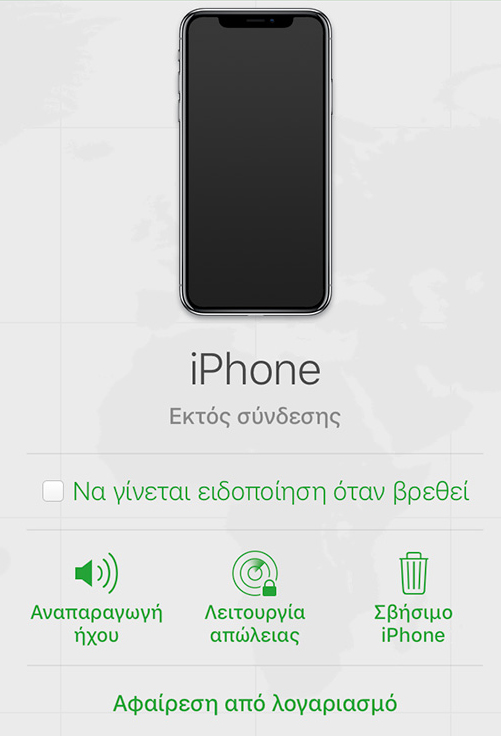
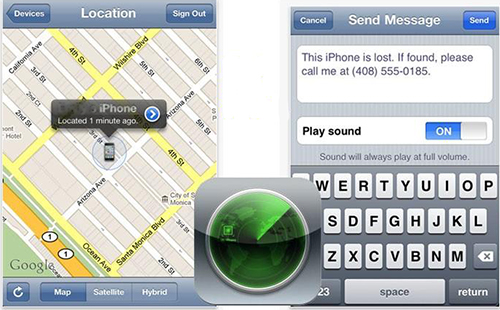
Open the Find My app on an iPhone or iPad signed in with the same Apple ID, or on a friend’s device using Help a Friend. In the Devices tab choose the lost device to see where it is and what you can do.
Your three options
Play sound
The device plays a loud sound, handy if it is nearby. A Mac also shows a message on screen.
Lost Mode
The recommended choice. It locks the device with a passcode and shows a message and contact number on screen.
Erase device
The last resort. It wipes all data, and the device can no longer be located on the map.
If the device is offline, the actions you choose run as soon as it reconnects. You can also ask to be notified when it is found.
I never turned on Find My. What now?
Without the service there is no way to locate it, but you can still protect your data:
- Change your Apple ID password
- Change passwords for email, social media and banking
- Report the loss to the nearest police station
- For an iPhone, ask your mobile carrier to block the SIM
- Remove the lost device from the trusted devices on your Apple ID